
You’ve probably spent minutes hunting for that article you opened last week, scrolling endlessly through Chrome history tabs. Most people think bookmarks or tab managers are the only solution, but Chrome has been quietly running a sophisticated indexing system that transforms how you search your browsing data. This system breaks every page into semantic chunks, converts them into searchable vectors, and stores everything in a lightning-fast database. Understanding how Chrome indexes your history unlocks faster, more intuitive searches without manual organization. You’ll discover the technical architecture behind instant retrieval and learn practical ways to leverage it for better research productivity.
Table of Contents
Key takeaways
| Point | Details |
| Semantic chunking | Chrome breaks pages into 200-word passages using recursive DOM analysis for contextual search. |
| Vector embeddings | Each passage becomes a 1540-dimensional vector capturing meaning beyond keywords. |
| SQLite database | History data lives in an optimized local database with sub-100ms retrieval times. |
| Multiple indexes | Full-text and regular indexes work together to speed filtering and search queries. |
| API limitations | Chrome’s search API matches all visit times, sometimes returning results outside date ranges. |
How Chrome indexes your browsing history
Chrome stores every page you visit in a local SQLite database called History. This file lives on your machine and contains tables like urls, visits, and downloads that organize your browsing data into structured records. When you visit a page, Chrome processes it into 1540-dimensional vectors using document chunking algorithms. The browser doesn’t just save URLs and titles. It analyzes page content, breaks it into semantic segments, and creates mathematical representations of meaning.
The DocumentChunker algorithm splits each page into logical text blocks, typically around 200 words each. These chunks aren’t random. The algorithm performs recursive analysis of the page’s DOM tree to identify natural semantic boundaries like paragraphs, sections, and article divisions. Each segment gets converted into an embedding vector, a series of floating-point numbers that capture topical and conceptual features. This process enables search queries that understand intent, not just exact keyword matches.
Chrome’s History file uses multiple indexing strategies for speed. Full-text search indexes allow rapid keyword matching across millions of entries. Regular indexes on timestamps, URLs, and visit counts support filtering and sorting. The database design handles massive scale efficiently, with typical queries returning results in about 100 milliseconds. Embedding storage uses 16-bit floating-point precision to balance accuracy with file size, keeping the database manageable even with extensive browsing history.
Chrome limits passage extraction to optimize performance. Each page generates up to 30 passages, with each passage capped at 200 words. The browser introduces small delays between processing tasks to prevent CPU overload during heavy browsing sessions. These constraints ensure indexing runs smoothly in the background without disrupting your workflow. Your browsing data stays local and private, stored entirely on your device. When you search history, queries run against this local database, not cloud servers. This architecture protects your privacy while delivering instant results.
Pro Tip: Clear old history periodically to keep your database lean and maintain fast search performance, especially if you browse heavily for research.
Chrome’s indexing transforms raw browsing into a searchable knowledge base, capturing not just where you went but what those pages meant.
How passage chunking and embeddings improve history search
The DocumentChunker splits pages into roughly 200-word semantic passages through a methodical process. It starts by analyzing the page’s DOM structure, identifying major content blocks like articles, sections, and lists. The algorithm works recursively, diving deeper into nested elements until it finds natural text divisions. This approach preserves context better than arbitrary character-count splits. A passage might contain a complete paragraph or a cohesive subsection, maintaining readability and semantic coherence.

Once extracted, each passage becomes a 1540-dimensional embedding vector using Google’s proprietary models. These vectors represent semantic features, capturing topics, concepts, and relationships between ideas. Traditional keyword search matches exact terms. Embedding-based search understands synonyms, related concepts, and contextual meaning. If you search for “machine learning frameworks,” Chrome can surface pages about TensorFlow or PyTorch even if those exact words don’t appear in titles or URLs.
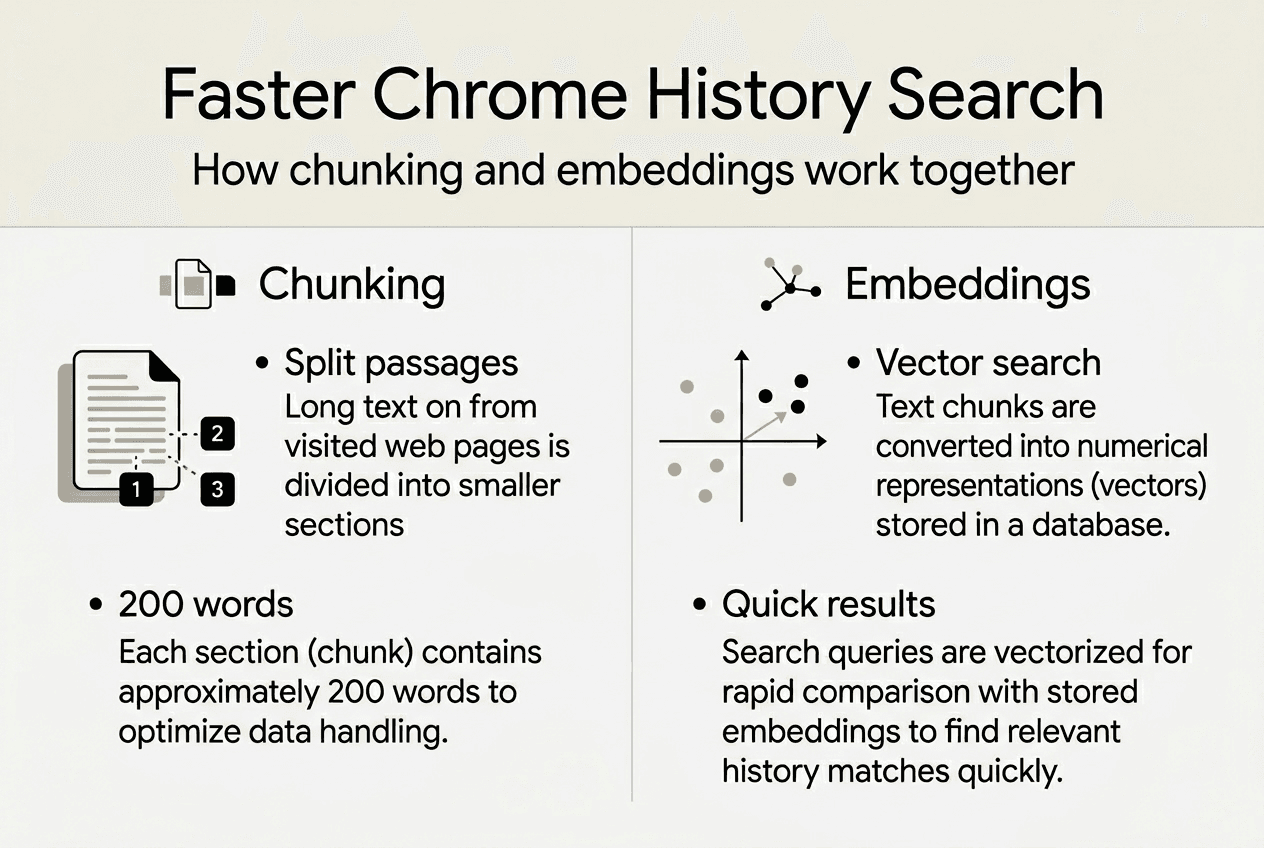
Embedding vectors enable natural language queries against your browsing history. You can type conversational phrases like “article about productivity tools for developers” and get relevant results. The system compares your query’s embedding to stored passage embeddings, ranking results by semantic similarity. This method significantly outperforms plain keyword matching for complex research tasks. You’re searching by meaning, not just matching character strings.
Chrome stores these embeddings per visit in the History database as binary vector data. Each time you revisit a page, the browser may generate fresh embeddings if content has changed. Passage limits prevent database bloat. The 30-passage cap per page and 200-word passage limit strike a balance between comprehensive indexing and storage efficiency. Delays between embedding tasks spread computational load, keeping Chrome responsive even during intensive browsing.
Pro Tip: Use natural language queries when searching history to take advantage of semantic embeddings, especially for finding tabs you vaguely remember.
-
Semantic chunking preserves context by respecting natural text boundaries
-
1540-dimensional vectors capture far more meaning than keyword indexes
-
Embedding comparison enables intent-based search beyond exact matches
-
Per-visit storage keeps embeddings current as page content evolves
-
Performance limits ensure indexing doesn’t slow your browsing experience
The nuances and challenges of Chrome history search APIs
Chrome’s history search API has a quirk that confuses many developers. The chrome.history.search function filters using all visit times for a URL, not just the lastVisitTime property. This behavior causes unexpected results when you specify date ranges. If you visited a page three months ago and again yesterday, searching for “last week” might still return that URL because one visit falls within your range.
This limitation affects precision when building automated tools that query history by date. You might request items from January 2026, but receive URLs you last accessed in December 2025 because an earlier visit occurred in January. The API documentation doesn’t emphasize this behavior clearly, leading to confusion. The search functionality matches time ranges against every recorded visit, not the most recent one. Understanding this helps set realistic expectations for date-filtered queries.
The browser’s persistent indexes optimize general search speed but struggle with complex filtering logic. Chrome prioritizes fast results over perfect precision for edge cases. When you use the browser UI to search history, it handles these quirks internally, often sorting results by recency to surface the most relevant items first. Developer APIs expose the raw behavior, requiring client-side filtering to achieve the precision you might expect.
Chrome’s API design favors speed and simplicity over complex query logic, placing the burden of refinement on developers.
Comparing different access methods reveals trade-offs:
| Method | Precision | Speed | Use Case | | — | — | | Browser UI search | Moderate | Fast | Quick manual lookups | | chrome.history.search API | Low | Very fast | Basic programmatic queries | | Direct SQLite queries | High | Moderate | Advanced analysis and filtering |
Best practices include combining date filters with keyword searches to narrow results effectively. Sort results client-side by lastVisitTime after retrieval to prioritize recent visits. For tools requiring exact date precision, consider accessing the History database directly via SQLite queries, though this requires more technical expertise. Understanding these limitations helps you choose the right approach for your specific needs, whether you’re building an extension or just trying to find that elusive research article.
-
API matches all visit times, not just the most recent one
-
Date-filtered queries may return items outside expected ranges
-
Browser UI handles quirks better than raw API calls
-
Client-side sorting and filtering improve result relevance
-
Direct database access offers maximum precision for advanced users
Pro Tip: When using chrome.history.search, always filter results client-side by lastVisitTime to ensure you get only the most recent visits within your target range.
How to use Chrome’s indexing for better history management
Chrome’s built-in history search bar leverages indexing to deliver fast results. Type any keyword and Chrome instantly filters your browsing data, surfacing matching pages. You can search by date using YYYY-MM-DD format to narrow results to specific days. This simple technique taps into the timestamp indexes Chrome maintains, making it easy to find pages from last Tuesday or three months ago. The search bar also supports partial URL matching and title fragments, giving you multiple ways to locate forgotten tabs.
Understanding embedding-backed search opens new possibilities. Some browser extensions and tools tap into Chrome’s semantic indexing to offer natural language queries. Instead of remembering exact titles or URLs, you can describe what you’re looking for in conversational terms. Tools that leverage these embeddings help you rediscover research without the cognitive load of precise recall. You’re searching by concept and context, not just exact phrases.
Advanced users can access the History database directly for deeper analysis. The SQLite file lives in your Chrome profile directory and contains rich data about your browsing patterns. You can run custom SQL queries to extract specific information, export history for offline analysis, or build personal dashboards tracking your research habits. This approach requires technical knowledge but offers maximum flexibility for power users who want complete control over their browsing data.
Practical steps to leverage Chrome’s indexing:
-
Use the built-in search bar with date filters and keywords for quick lookups
-
Experiment with extensions that utilize semantic embeddings for natural search
-
Export or sync history data for cross-device access and backup
-
Clear unneeded history regularly to maintain database performance
-
Combine multiple search strategies for complex research retrieval tasks
Regular maintenance keeps your History database running smoothly. Chrome handles most optimization automatically, but periodic cleanup prevents bloat. Delete old entries you no longer need, especially if you browse extensively for work. This practice keeps search fast and reduces storage overhead. Some extensions offer bulk deletion tools that make cleanup easier than manual selection.
Pro Tip: Bookmark the History search page for one-click access, then use keyboard shortcuts to search without touching your mouse, speeding up your research workflow significantly.
-
Natural language queries work better with embedding-based search tools
-
Date filtering using YYYY-MM-DD format narrows results to specific days
-
Direct database access enables custom queries and detailed analysis
-
Regular cleanup maintains fast search performance over time
-
Combining multiple search methods improves retrieval success rates
Streamline your research with Daysift
You’ve learned how Chrome indexes your browsing history, but accessing that power efficiently still requires the right tools. Daysift builds on Chrome’s indexing capabilities to give you instant search across everything you’ve opened. Press one keyboard shortcut and find any page, article, or document in seconds. Your data stays local and private, just like Chrome’s native system, but with a search interface designed specifically for knowledge workers who need fast retrieval without manual organization.
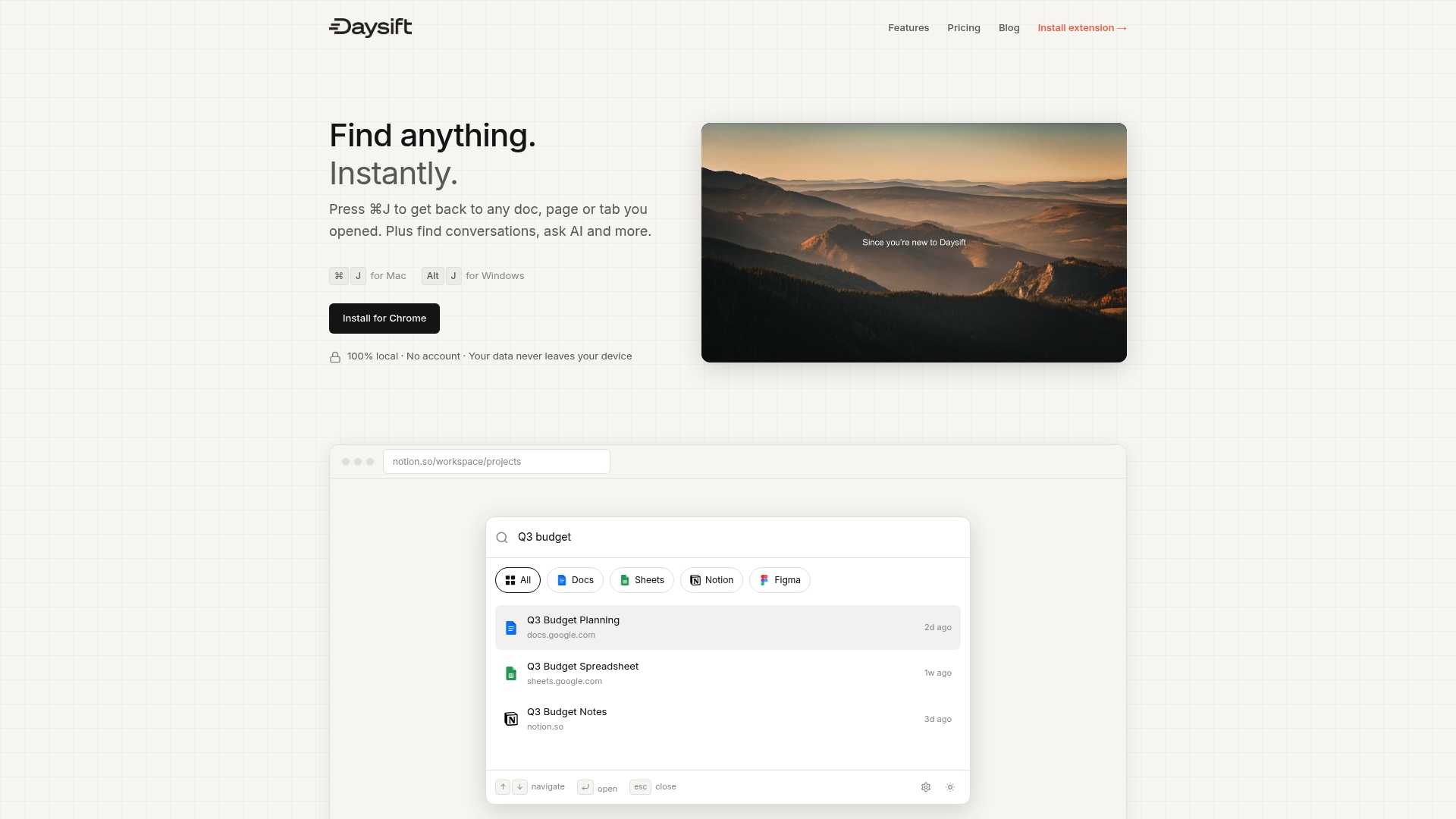
Daysift complements Chrome’s semantic indexing with fuzzy matching, domain filtering, and AI-powered search. You can ask questions about your browsing history in plain language and get relevant results immediately. No more scrolling through endless history tabs or trying to remember exact titles. Get started and transform how you access your research. Your browsing becomes a searchable knowledge base that works the way you think, not the way databases are structured. Check our privacy policy to see how we protect your data.
Frequently asked questions
What is browser indexing in Chrome?
Browser indexing is how Chrome organizes and stores your browsing data for fast search and retrieval. The system breaks pages into semantic chunks, converts them into embedding vectors, and stores everything in an optimized SQLite database. This architecture enables rich, natural language search beyond simple keyword matching, making your history searchable by meaning and context.
How does Chrome chunk and embed pages for history search?
Chrome uses the DocumentChunker algorithm to break pages into passages of roughly 200 words through recursive DOM tree analysis. Each passage becomes a 1540-dimensional embedding vector that captures semantic features and contextual meaning. These vectors enable intent-based search that understands what you’re looking for, not just exact keyword matches.
Why might Chrome history search show results outside the requested date range?
The chrome.history.search API matches date filters against all visit times for a URL, not just the most recent visit. This causes items to appear in results even when their lastVisitTime falls outside your specified range. If you visited a page multiple times, any visit within your date filter triggers inclusion, regardless of when you last accessed it.
How can I leverage Chrome’s indexing to improve my research workflow?
Use date filters in YYYY-MM-DD format combined with keywords in Chrome’s history search bar for faster retrieval. Consider extensions that tap into Chrome’s embedding data to enable natural language queries, letting you find pages by describing their content rather than remembering exact titles. Regular cleanup of old history entries keeps your database performant and search results relevant.