

You open Chrome and everything grinds to a halt. Tabs multiply faster than you can close them, your laptop fans spin like jet engines, and that spreadsheet you need right now refuses to load. Sound familiar? For remote professionals and freelancers juggling multiple projects, Chrome's memory appetite can kill productivity fast. This guide shows you how to reclaim speed and stability using Chrome's built-in tools, smart tab management, and proven workflow strategies that actually work.
Table of Contents
- Understanding Chrome's Memory Model And Tab Management
- Preparing Your Chrome Environment For Efficiency
- Executing Efficient Tab Management And Workflow Strategies
- Verifying Efficiency And Troubleshooting Common Pitfalls
- Enhance Your Browsing Efficiency With Daysift
- Frequently Asked Questions About Efficient Chrome Browsing
Key takeaways
| Point | Details |
|---|---|
| Process isolation multiplies memory use | Chrome runs each tab in separate processes for security, dramatically increasing RAM consumption across dozens of open tabs. |
| Native tab discarding saves 100-300 MB per tab | Chrome's built-in suspension frees memory efficiently without relying on unstable third-party extensions. |
| Memory Saver trades speed for RAM | Proactive suspension reduces memory but may fully reload tabs, risking unsaved work and slower restore times. |
| Extension overload backfires | Each extension runs its own process, often consuming more memory than the tabs it claims to manage. |
| Smart habits beat heavy tooling | Regular tab audits and keyboard shortcuts maintain speed without adding memory overhead from management tools. |
Understanding Chrome's memory model and tab management
Chrome sacrifices RAM for security by isolating every tab in its own process. This architecture means each webpage, extension, and plugin runs independently. If one tab crashes, your other work stays safe. The tradeoff? Memory usage multiplies fast.
Here's the math. Open 10 tabs and you're running 10 separate renderer processes. Each one needs its own memory allocation, typically 50 to 200 MB depending on the site. Heavy web apps like Google Sheets or Figma can consume 300 to 500 MB per tab. Add five extensions and you've got five more processes eating RAM in the background.
How Chrome allocates memory across common scenarios:
| Scenario | Estimated RAM Usage | Number of Processes |
|---|---|---|
| 5 simple text tabs | 250-500 MB | 5-7 |
| 10 mixed content tabs | 800-1500 MB | 12-15 |
| 20 tabs with heavy apps | 2500-4000 MB | 25-30 |
| 30+ tabs plus extensions | 4000-6000+ MB | 35-50+ |
Native tab discarding exists precisely to manage this explosion. When memory runs low, Chrome automatically suspends inactive tabs, freeing their RAM while preserving the tab's place in your browser. The page title and favicon remain visible, but the actual content unloads from memory. Click the tab again and Chrome reloads it fresh.
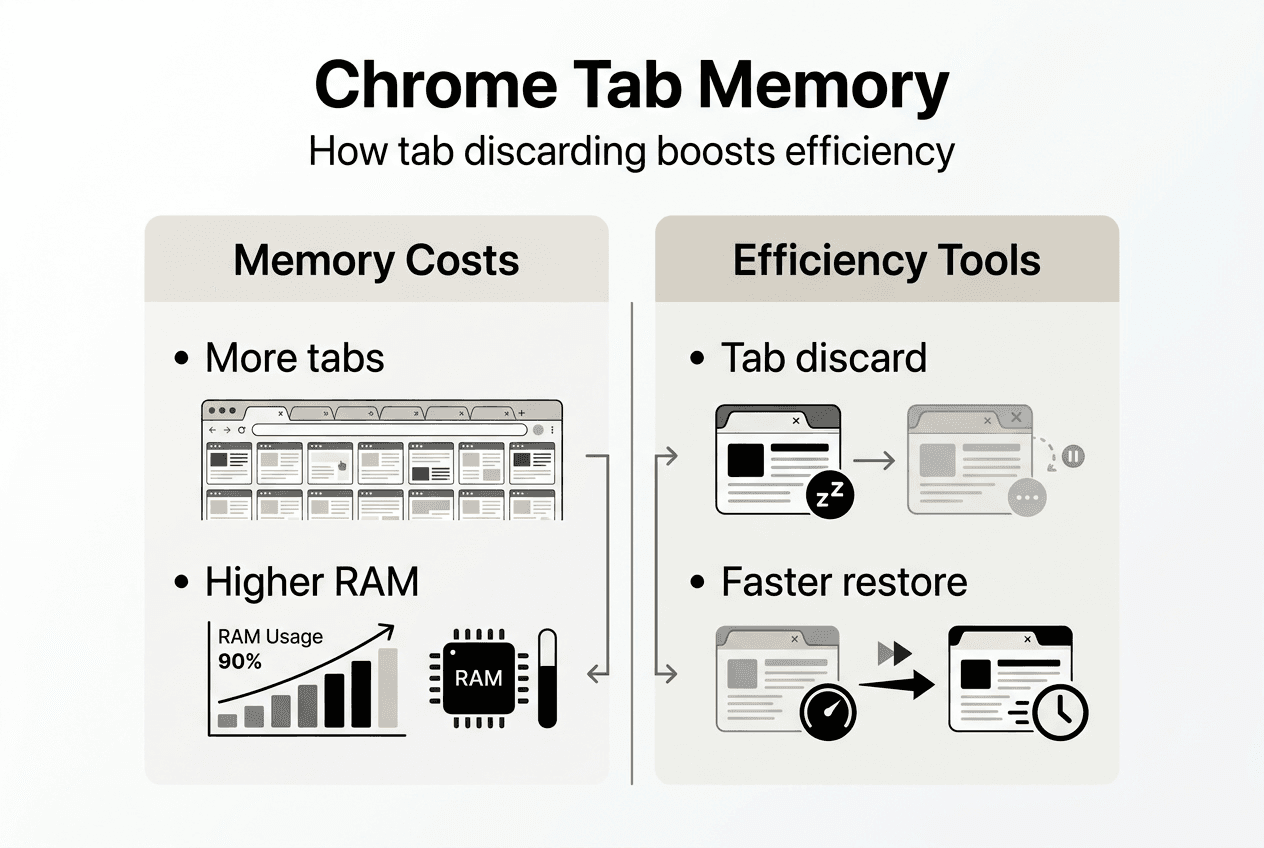
This approach delivers real benefits. You avoid browser crashes when memory maxes out. Tabs you're actively using stay responsive. The system manages memory intelligently without you micromanaging every open page.
Pro Tip: Tab hoarding feels productive but directly increases Chrome's memory footprint. Close tabs you haven't touched in 24 hours or use bookmarks for reference material you'll need later.
The key insight? Chrome's security model requires aggressive memory use. Fighting this with dozens of open tabs creates the slowdown you're trying to avoid. Work with the architecture, not against it.
Preparing your Chrome environment for efficiency
Before you can manage tabs effectively, you need to configure Chrome's built-in features and eliminate memory drains. Most IT teams never configure Chrome's memory management features that ship disabled by default. You're likely running with no protections at all.
Start with Memory Saver. Navigate to Settings, then Performance. Toggle Memory Saver on. This feature proactively suspends tabs based on inactivity timers, freeing memory before you hit critical limits. You can customize which sites stay active by adding exceptions for tools you use constantly, like your email client or project management dashboard.

Next, audit your extensions ruthlessly. Each one runs its own process and consumes memory continuously, even when idle. Open Chrome's Task Manager by pressing Shift+Esc. Sort by memory usage. You'll likely find extensions eating 100 to 300 MB each. Disable anything you haven't used in the past week. Remove extensions that promise memory management, they often consume more resources than they save.
Extensions to evaluate for removal:
- Tab managers that duplicate Chrome's native search
- Memory savers that add another process layer
- Productivity tools you installed but never use
- Duplicate functionality like multiple ad blockers
Chrome flags offer advanced control for power users. Type chrome://flags in your address bar. Search for "Calculate window occlusion on Windows" and enable it. This tells Chrome to reduce resource allocation for minimized or hidden windows. Search for "Back-forward cache" and enable it to speed up navigation without extra memory cost.
Adopt a different mindset about tabs. You don't need everything open simultaneously. Chrome's tab search feature (Ctrl+Shift+A on Windows, Cmd+Shift+A on Mac) lets you find and jump to any open tab instantly. Use it instead of keeping 40 tabs visible as a makeshift navigation system.
Pro Tip: Master keyboard shortcuts to manage tabs without thinking. Ctrl+W closes the current tab, Ctrl+Shift+T reopens the last closed tab, and Ctrl+Tab cycles through open tabs. Speed comes from reducing friction, not from keeping everything visible.
The preparation phase sets you up for sustained efficiency. You've enabled Chrome's native protections, removed memory-hogging extensions, and shifted your workflow away from tab hoarding. Now you're ready to execute smart tab management daily.
Executing efficient tab management and workflow strategies
With your environment optimized, it's time to build habits that keep Chrome fast every single day. This isn't about perfection, it's about consistency in a few high-impact actions.
Step 1: Start each work session with a tab audit. Scan your open tabs and close anything clearly unnecessary. That article you finished reading? Gone. The documentation you referenced once? Bookmark it and close it. Aim to keep active tabs under 15 during focused work.
Step 2: Configure tab discarding behavior. If you enabled Memory Saver earlier, adjust its sensitivity. Go to Settings, Performance, and review your site exceptions. Add tools where you absolutely cannot afford a reload, like your CRM during data entry or your code editor with unsaved work. For everything else, let Chrome suspend aggressively.
Step 3: Use Chrome's tab search as your primary navigation tool. Press Ctrl+Shift+A and type a few characters from the page title. Results appear instantly. This eliminates the need to keep tabs open "just in case" you need them later. You can find any tab in seconds without visual clutter.
Step 4: Avoid memory management extensions entirely. Native tab discarding frees up 100 to 300 MB of RAM per inactive tab, outperforming third-party tools. Extensions add their own memory overhead and often conflict with Chrome's built-in systems, creating instability instead of solving it.
Step 5: Group related tabs using Chrome's tab groups feature. Right-click any tab, select "Add tab to new group," and assign a color and name. This visual organization reduces cognitive load without adding memory cost. Collapse groups you're not actively using to minimize distraction.
Comparing memory management approaches:
| Method | RAM Freed Per Tab | Tab Restore Time | Risk of Data Loss | Stability |
|---|---|---|---|---|
| Native tab discarding | 100-300 MB | 1.7 seconds | Low | High |
| Memory Saver feature | 80-250 MB | 3-5 seconds | Medium | High |
| Third-party extensions | 50-150 MB | 8.4 seconds | Medium | Low |
| Manual tab closing | 100% of tab RAM | N/A (requires reopen) | None | High |
The execution phase is where theory meets reality. You're not trying to achieve zero open tabs or perfect organization. You're building muscle memory around closing unnecessary tabs, using native search instead of visual scanning, and letting Chrome's built-in tools handle memory automatically.
Pro Tip: Set a recurring calendar reminder to close all tabs at the end of each workday. Start fresh tomorrow. This single habit prevents tab accumulation and forces you to bookmark anything truly important.
These strategies work because they align with how Chrome actually manages memory. You're not fighting the browser, you're working within its design to maintain speed and stability.
Verifying efficiency and troubleshooting common pitfalls
You've optimized settings and changed your habits. Now you need to measure whether it's actually working and catch problems before they derail your productivity.
Open Chrome's Task Manager (Shift+Esc) and monitor it for a few minutes during normal work. Sort by memory usage. Your active tabs should show reasonable RAM consumption, typically under 200 MB each unless you're using heavy web apps. Background tabs should show significantly lower usage if tab discarding is working correctly. Extensions should collectively use less than 500 MB total.
Watch for warning signs of inefficiency. If tabs take more than three seconds to restore when you click them, Memory Saver might be too aggressive. If Chrome crashes more than once per week, you're likely still running too many simultaneous tabs or heavy extensions. If you notice unsaved work disappearing when tabs reload, add those sites to Memory Saver exceptions immediately.
Disabling memory extensions reduces tab restore time from 8.4 seconds to 1.7 seconds and reduces crashes by 3.2 times. If you're still running any memory management extensions, remove them now and compare your experience over the next week. Most users see immediate improvement.
Common pitfalls to avoid:
- Layering multiple memory tools that conflict with each other
- Setting Memory Saver exceptions for too many sites, defeating its purpose
- Ignoring Chrome Task Manager data that shows which tabs or extensions cause problems
- Assuming more extensions will solve memory issues they're creating
Users with native tab discarding have 3.2 times fewer crashes and restore tabs 6.7 seconds faster on average compared to those relying on third-party memory extensions.
Schedule a weekly review of your setup. Check Chrome Task Manager to identify new memory hogs. Review your Memory Saver exceptions and remove any that are no longer necessary. Clear browsing data (cached images and files) to free up disk space and slightly improve performance.
Pro Tip: Set a monthly reminder to clear your browsing data. Go to Settings, Privacy and Security, Clear Browsing Data. Select "Cached images and files" for the past four weeks. This removes accumulated junk without affecting your passwords or history.
Verification isn't about achieving perfect metrics. It's about catching regressions early and maintaining the improvements you've already made. If your Chrome experience feels noticeably faster and more stable than a month ago, you're succeeding. If problems persist, revisit your tab habits and extension list. For more browser performance tips, explore optimization strategies that complement these memory management techniques.
Enhance your browsing efficiency with Daysift
You've mastered Chrome's memory management and built smarter tab habits. Now take your productivity further with a tool designed specifically for people who work across dozens of tabs daily.
Daysift gives you instant access to anything you've opened in Chrome. One keyboard shortcut, one search box, zero organization required. Press ⌘J on Mac or Alt+J on Windows, type a few words, and jump directly to the tab or page you need. No more scrolling through endless tab bars or trying to remember which window has that important document.
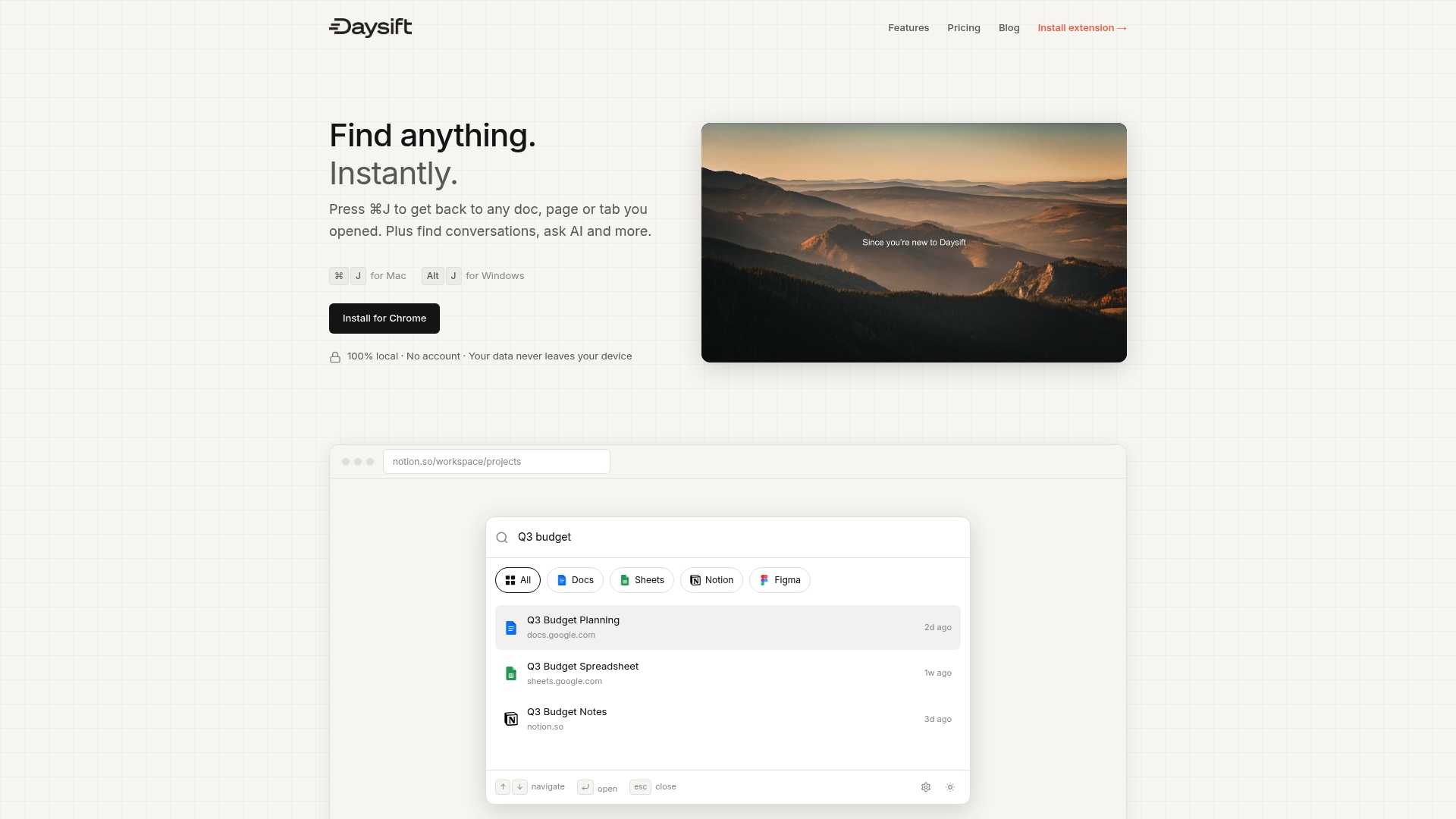
Daysift works because it quietly indexes every work-relevant page you visit, making your entire browsing history searchable locally on your machine. It complements Chrome's native memory management perfectly by eliminating the need to keep tabs open for quick access. Find what you need in seconds, keep fewer tabs active, and let Chrome's tab discarding do its job without worrying about losing track of important pages.
Getting started takes less than two minutes. The free tier includes 30 days of searchable history and works immediately without any configuration. For professionals managing complex projects across multiple clients, Daysift transforms tab chaos into effortless navigation.
Frequently asked questions about efficient Chrome browsing
How does Chrome decide which tabs to discard?
Chrome prioritizes tabs based on last interaction time and resource usage. Tabs you haven't clicked in hours get suspended first, while recently active tabs stay loaded. Pinned tabs and sites playing audio receive protection from automatic discarding.
Can I prevent tab discarding for important tabs?
Yes. Add specific sites to your Memory Saver exceptions list in Settings under Performance. This keeps those tabs fully loaded regardless of inactivity. Use this sparingly for tools where reloading causes problems, like unsaved forms or active editing sessions.
Are memory saver extensions worth using if Chrome has native features?
No. Native tab discarding outperforms extensions by freeing 100 to 300 MB per tab with faster restore times and better stability. Extensions add their own memory overhead and often conflict with Chrome's built-in management, creating more problems than they solve.
What are quick keyboard shortcuts for managing tabs efficiently?
Ctrl+W closes the current tab, Ctrl+Shift+T reopens the last closed tab, Ctrl+Tab cycles forward through tabs, and Ctrl+Shift+A opens tab search. On Mac, use Cmd instead of Ctrl. Mastering these five shortcuts eliminates most need for mouse-based tab management.
How often should I clear my browsing data to maintain performance?
Clear cached images and files monthly to free disk space and slightly improve load times. Go to Settings, Privacy and Security, Clear Browsing Data, and select only cached content for the past four weeks. Avoid clearing cookies or history unless necessary, as this forces you to log back into sites and loses useful autocomplete data.